Here a summarized list of what would prevent migrating from Veeam v12.3 to V13, be aware that you must read the release notes carefully and also the requirements for each component, Hypervisor’s version, integrated storages, etc.
Unsupported OS for the VBR server
Veeam v13 requires newer Windows Server versions.
The upgrade is blocked if you run:
- Windows Server 2012 / 2012 R2
- Windows Server 2016 without latest updates
- Windows Server desktop OS that is not in the support list
Fix: Move VBR to a supported OS or perform a migration.
Unsupported SQL Server version
v13 no longer supports:
- SQL Server 2012 / 2014 / 2016
- Express or Standard editions below the minimum required build
If your config DB is on an unsupported SQL version, the upgrade stops.
Fix: Upgrade SQL to a supported version (SQL 2017/2019/2022) or migrate the DB
Unsupported .NET version
Veeam v13 requires updated .NET runtime components.
If the system is missing required .NET or PowerShell frameworks, the installer blocks.
Fix: Install the required .NET version (typically .NET 4.8 and additional runtimes).
Old components still registered (Cloud Connect, Enterprise Manager, Console, Agent, Plug-ins)
If any connected component is still below v12.1, Veeam blocks the upgrade.
Common blockers:
- Veeam Enterprise Manager not upgraded first
- Cloud Connect components on old builds
- Plug-ins for Oracle, SAP HANA, Nutanix AHV, etc.
Fix: Upgrade all components to v12.1 or 12.1.x before upgrading to v13.
Legacy license type
If the appliance or VBR server uses:
- Socket-only licenses
- Expired or mismatched license files
…the v13 installer may block or warn.
Fix: Install a current VUL/Universal license before upgrading.
Soft Blockers — Upgrade can start but will fail or break functionality
Unsupported or outdated Linux-based backup repositories
Older repository packages (ext4/xfs repos, hardened repo components) may fail the compatibility check.
Fix: Update proxy/repository components when prompted.
Legacy VMware vSphere versions
Veeam v13 drops support for:
- vSphere 6.0 / 6.5
- ESXi hosts using outdated APIs
If your environment still contains these, certain jobs will break after upgrade.
Fix: Remove or upgrade unsupported hosts.
Legacy Hyper-V versions
Hyper-V on Windows Server 2012 R2 or 2016 RTM may trigger warnings or failures.
Fix: Upgrade hosts or remove them before upgrading.
Non-upgraded Agents (Windows/Linux/Mac)
If agents managed by VBR are too old, migration can partially fail or jobs will error out.
Locked or unreachable configuration database
Upgrade fails if:
- SQL DB is in “read-only” mode
- SQL user lacks db_owner rights
- SQL AlwaysOn cluster is unhealthy
- SQL instance is unreachable during the upgrade
Low disk space on the VBR server
Upgrade extracts packages and backs up the database. Low disk space can stop the upgrade.
Third-party integrations not compatible with v13
Examples:
- Hardware storage plug-ins
- Tape library drivers
- Dell/NetApp/HPE offload integrations
- Old Veeam ONE or monitoring systems
Installer may warn or certain services will not start after upgrade.
Corrupted Veeam services or incorrect service accounts
If critical services (Veeam Backup Service, Veeam Broker, SQL Browser) are:
- Not running
- Using invalid credentials
- Damaged from partial upgrades
the upgrade may fail.
Based on this scenario:
- VBR 12.3 on Windows Server 2016
- SQL Server 2016
- VMware ESXi 7.0 U1
- Windows Server 2016 ReFS repository
Build a table like that:

Doing that, you will have a clear view that what must be done in order to get your migration successfully.
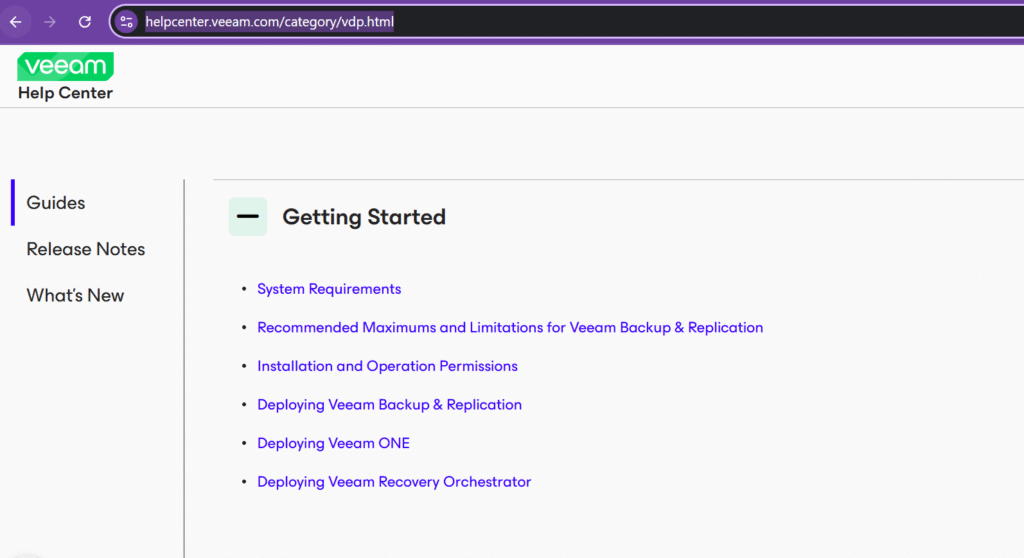
Consult the https://helpcenter.veeam.com/category/vdp.html for information
Hope that helps 🙂